Using Hyper-V for IGEL Managed Hypervisor Testing
The IGEL Managed Hypervisor (IMH) is a relatively new add-on for IGEL and you may want to start testing it in your environment. Although I'm not able to find an official word on if it's supported to run in a Hyper-V environment, with a few tweaks it runs fine and is certainly good enough for toying around with.
In this post I'm going to show you how to setup an IMH on a Hyper-V virtual machine. I am writing this making some assumptions:
- You already have a UMS stood up.
- You have a IMH license available for the VM.
- You're familiar with deploying the IMH license to an IGEL system.
- You're familiar with deploying the IMH apps/profile from the UMS.
In short, this post is less about using IMH and more about how to get IMH working in Hyper-V.
You may find the idea of running VMs inside of a VM strange. This is possible through what's known as Nested Virtualization. It's not fully enabled out-of-the-box with Hyper-V, but can be enabled. You should be running Windows 11 or Windows Server 2022 and a relatively modern processor. I'd guess if you have a CPU that supports Windows 11, you're probably safe.
Building the Hyper-V Guest.
If you're unfamiliar with building a IGEL guest in Hyper-V, follow my instructions in IGEL First Time Setup. If you're already familiar with the IGEL setup process, you don't need to read the last post.
Make the following adjustments as your build the virtual machine:
- Do not skip the steps on enrolling into your UMS.
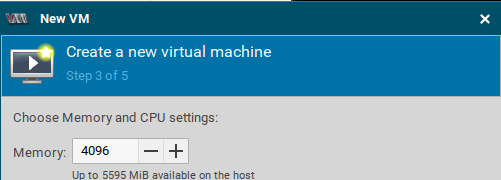
- Do not just assign 4 GB of RAM, assign as much as you'll need for the host and guests of the VM.
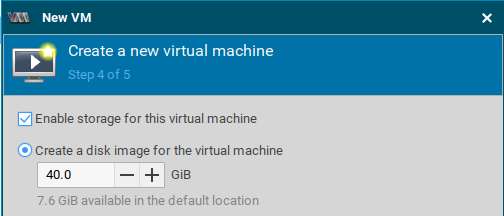
- Assign an appropriate amount of disk space. Windows 10 and 11 typically require 40 GB additional each.
- Once the build is complete, assign an IMH license to the VM from your UMS.
Enabling Nested Virtualization
To enable nested virtualization:
- Shutdown the IGEL Virtual Machine.
- Start a PowerShell terminal as administrator. Run the following command:
1# Replace 'VM Display Name' with the name of your Virtual Machine as it's shown in the Hyper-V Console.
2# If this is successful, it'll return nothing. Otherwise, an error will be returned.
3
4Set-VMProcessor -VMName "VM Display Name" -ExposeVirtualizationExtensions $true
- Start-up the virtual machine and open a terminal as root. Run the following command:
1# Create the /dev/imh folder.
2# Not sure why this is required, but Virt-Manager yells about this folder not existing if I don't create it.
3mkdir /dev/imh
What happens if you don't enable Nested Virtualization?
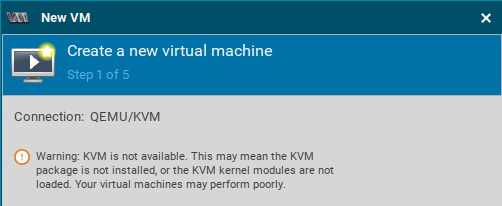
You'll have the following problems if you attempt to build a Hyper-V IGEL Managed Hypervisor guest without enabling nested virtualization:
Warning: KVM is not available. This may mean the KVM package is not instaleld, or the KVM kernel modules are not loaded. Your virtual machines may perform poorly.
Not all available memory is available to the host. When using dynamic memory, not all of the memory is shown as available when building a VM.
Low disk space available. Even if you've given the system a large internal disk, only a small amount will be available. For me this always seems ot be 7.6 GiB.